Guides
How to transcribe a meeting with multiple speakers
Upload a recorded meeting to Transcrever, identify and rename speakers, correct text against the audio, and download TXT, DOCX, SRT, or VTT.
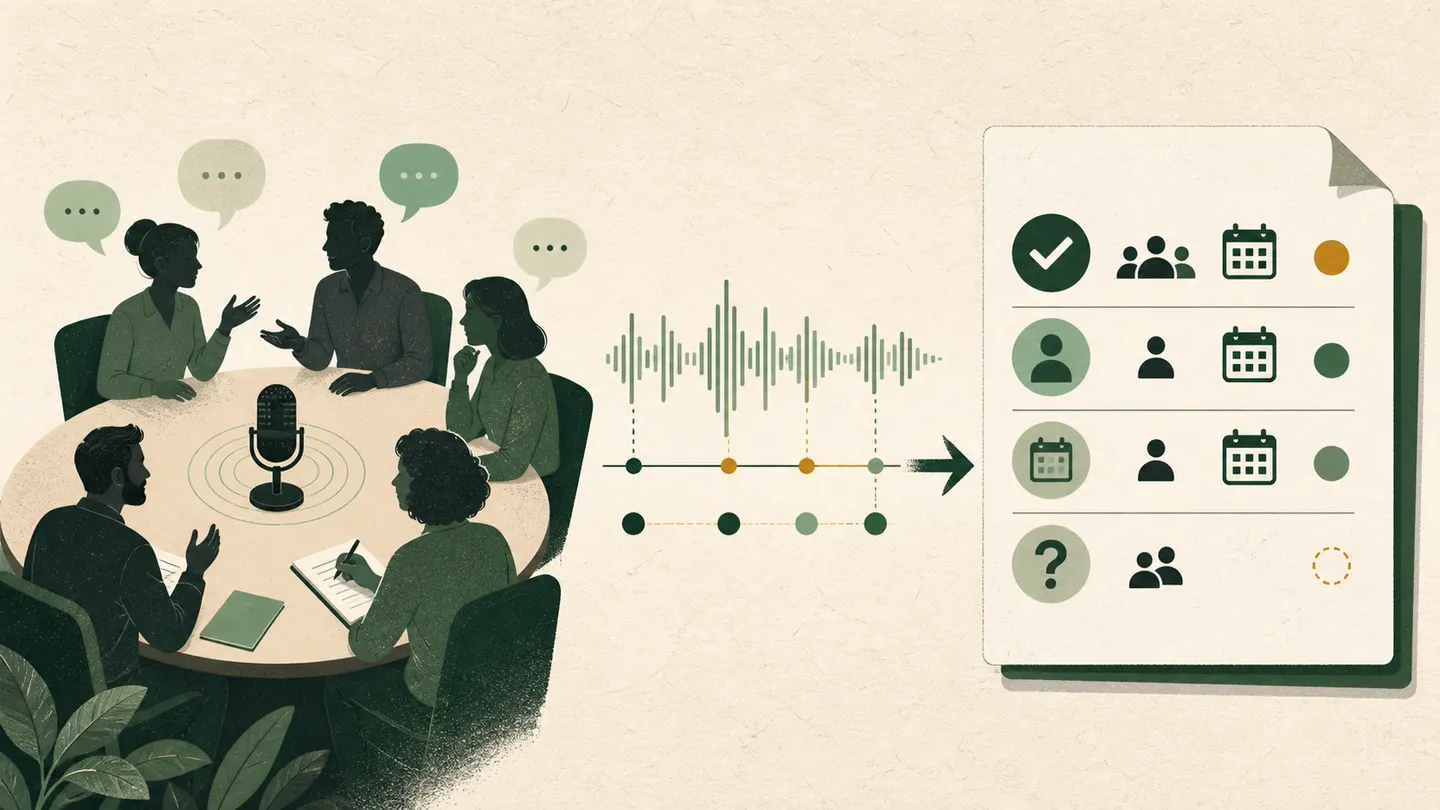
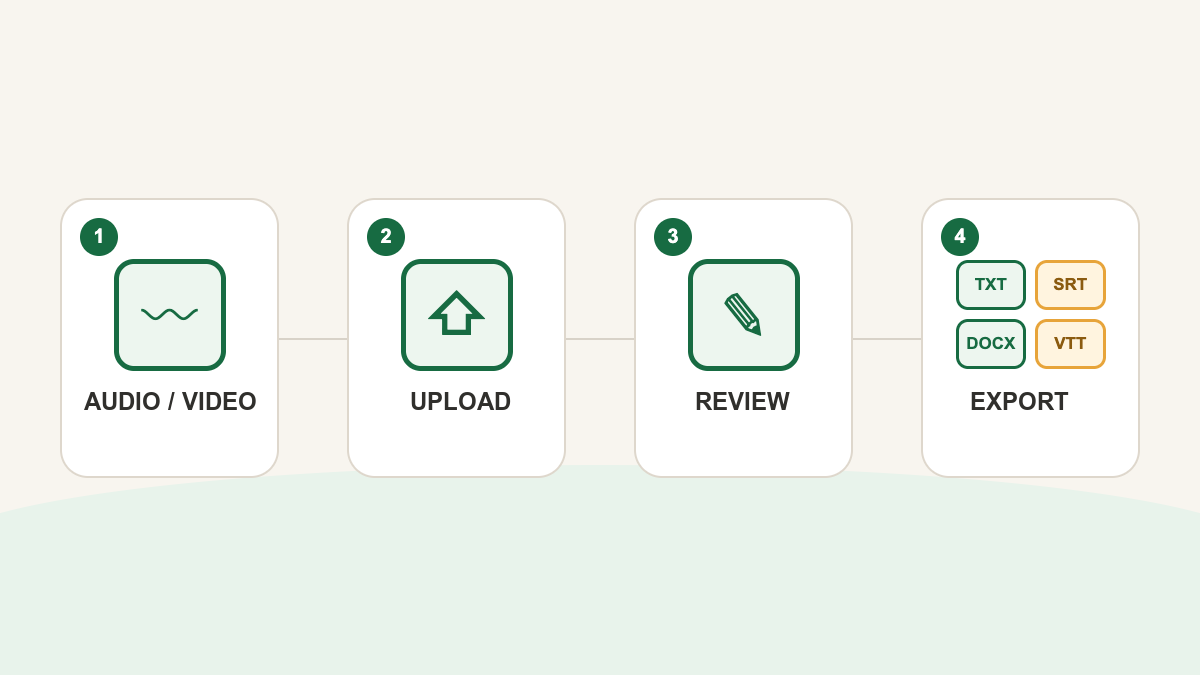
To transcribe a meeting with multiple speakers in Transcrever, use the best available audio or video file, choose the spoken language, and enable speaker separation. When the task finishes, open the editor, identify and rename speakers, listen again to important names and numbers, and download the reviewed transcript as TXT, DOCX, SRT, or VTT.
What you need before you start
Use the file closest to the original source. Before uploading, confirm the main language, whether several people speak, whether the file plays to the end, which names and numbers require exact spelling, and whether you need TXT or DOCX for the text, or SRT or VTT with timings.
Transcrever works with an already recorded meeting. It does not join a live call to record participants.
Step 1: choose the meeting language
Open the meeting transcription page. Before selecting a file, choose the language spoken in most of the meeting, not the language in which you may later write minutes. Add important names and terms to the vocabulary if needed.
Step 2: configure speakers and upload the file
Keep speaker separation enabled when the recording has two or more voices. The result will contain timed segments with speaker labels. Follow the complete flow to separate and rename the speakers when you need to confirm participants throughout the transcript.
These labels are a review aid. Similar voices, overlapping speech, or uneven volume can move an attribution to the wrong participant, so do not treat an automatic label as final proof of authorship.
After setting the language and speaker options, select or drop the recording to start uploading.
Step 3: open the completed task
After upload, the recording appears as a task. Open the editor once transcription is complete. The result contains segmented text, timings, and detected speakers.
If the file fails before producing a result, check its format, playback, and the limits shown on screen. The editor opens only for a completed task.
Step 4: identify and rename speakers
Start with a passage where people introduce themselves or address one another by name. Play it, identify the voice, rename the label, and then verify a second passage from the same person.
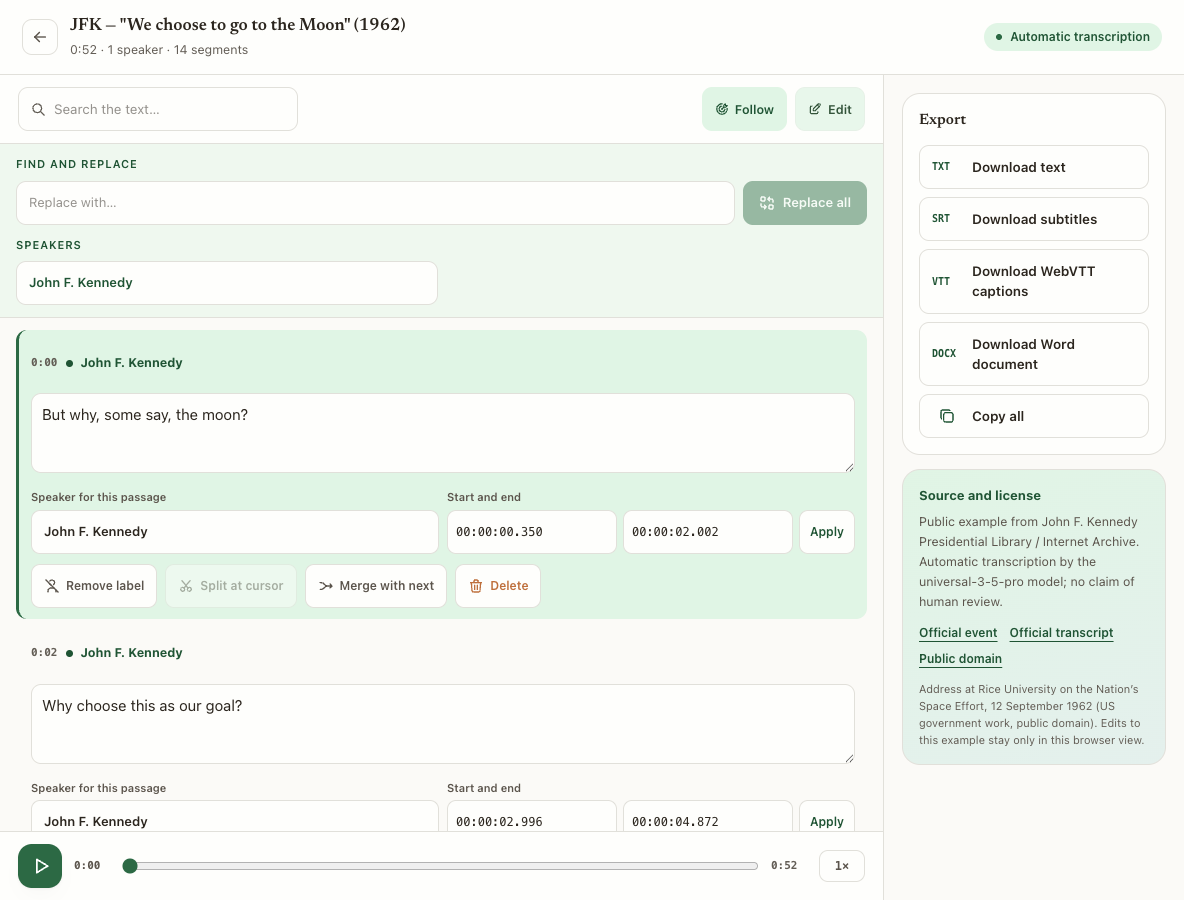
If a speaker change looks wrong, listen from the previous segment. Short answers such as “yes” or “that works” depend on surrounding context and are difficult to attribute in isolation.
Step 5: search and correct consequential details
Search for participants, organizations, products, dates, amounts, percentages, and negatives. For every important result:
- play a few seconds before it;
- confirm the speaker;
- enter edit mode and correct the text;
- reread the sentence for meaning;
- keep uncertainty visible when the audio does not confirm the words.
Search is a shortcut to the passage. The recording remains the source for deciding what was said.
Step 6: review overlap and distant speakers
One person often interrupts while another finishes a sentence. The text may combine words, omit a short response, or change speaker mid-passage. Listen across the complete transition. If two important voices remain indistinguishable, do not choose a participant based only on the topic.
Step 7: download the right format
Choose TXT for plain text used in search or quotations, DOCX to continue in a document editor, SRT for timed SubRip subtitle cues, or VTT for timed WebVTT captions on compatible platforms.
Transcrever exports the transcript. It does not automatically turn a meeting into minutes, a summary, decisions, or tasks. Use the reviewed TXT or DOCX as source material and return to timestamps whenever a passage needs confirmation.
Common problems in multi-speaker meetings
| Problem | What it looks like | What to check |
|---|---|---|
| Wrong speaker | A reply appears under the preceding name | Listen across the voice change |
| Distant voice | Words disappear or become similar terms | Look for a clearer local recording |
| Overlap | Two sentences merge | Replay the transition and retain uncertainty if needed |
| Incorrect name | A common word replaces a name | Compare with the participant list |
| Suspicious number | The sentence reads well but changes the information | Listen again and check another source |
| Meaningless text throughout | Plausible words appear in the wrong language | Check the selected upload language |
Frequently asked questions
Does Transcrever join live meetings?
No. Record the meeting using an authorized platform or device, then upload the audio or video file.
Does it know each participant's name?
It separates voices into speaker labels. You identify each person from the recording and rename the labels in the editor.
Can it create meeting minutes automatically?
No. The result is an editable transcript with timings and speakers. You can use the reviewed TXT or DOCX as source material for minutes in another workflow.
Do I need to review the whole meeting?
For a dependable complete transcript, read the full result and listen to uncertain passages. For a small set of topics, search for those terms and verify every result with the surrounding context.