Choosing a tool
Transcrever vs TurboScribe: choose for your recording routine
Compare free access, subscriptions and one-time minutes before choosing how to review and export your recordings.
Start with recording duration and frequency when choosing between Transcrever and TurboScribe. Transcrever offers a no-account trial for files up to 10 minutes, then subscriptions or one-time minutes. Check TurboScribe's free and subscription offers on its official website.
Compare access before uploading
Information checked September 30, 2026. Confirm current terms before paying.
| Decision | Transcrever | TurboScribe, as documented officially |
|---|---|---|
| Free trial | Up to 10 minutes per file; 30 total minutes without an account | 3 files daily, up to 30 minutes each |
| Paid usage | Monthly allowance or one-time minutes | Unlimited subscription |
| Text and captions | TXT, DOCX, SRT and VTT | TXT, DOCX, SRT and VTT, among others |
When one-time minutes fit
For an occasional interview or group of recordings, add their durations and compare the total with a subscription allowance. Transcrever purchases start at 200 non-expiring minutes and require Google sign-in. Purchased minutes do not extend retention or grant cross-device history. See current limits and prices in plans and minutes.
When to compare subscriptions
For monthly work, check allowance, per-file limits and result retention. Transcrever Pro includes 500 minutes monthly; Studio includes 1,000. Annual billing still renews the allowance monthly. Compare each service's current terms against your actual volume.
Test a representative recording
Use a shareable sample containing your usual accent, noise and names. Check both results against the same audio: names, amounts, negations, speaker changes and first/last phrases. Count necessary corrections and consider review time. Published features and limits cannot establish which transcript will be better for your file.
Check your required export
In Transcrever, listen while correcting text and speaker labels, and adjust passage times manually before export. TXT and DOCX carry text; SRT and VTT carry timed passages. Open captions in your video editor to verify timing. Translation and burned-in captions require another step.
Start with a suitable trial
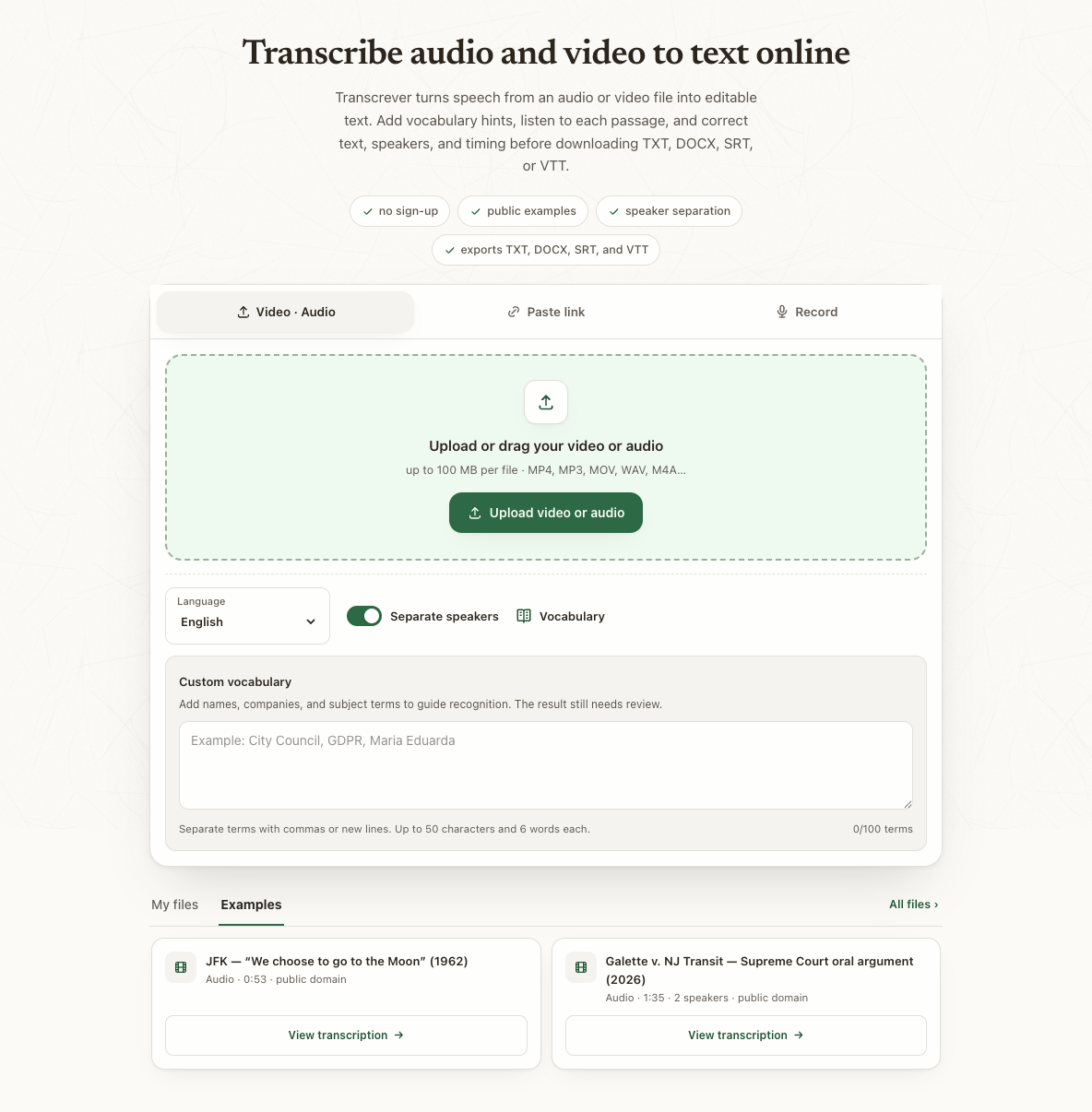
Open audio to text, select the language and upload an eligible file. Review before choosing access for the remaining recordings. Check TurboScribe and Transcrever pricing for current terms.