WhatsApp audio
How to transcribe a long WhatsApp audio and check the result
Save the complete message, check its duration and ending, review your Transcrever plan limit, and verify the transcript against the recording.
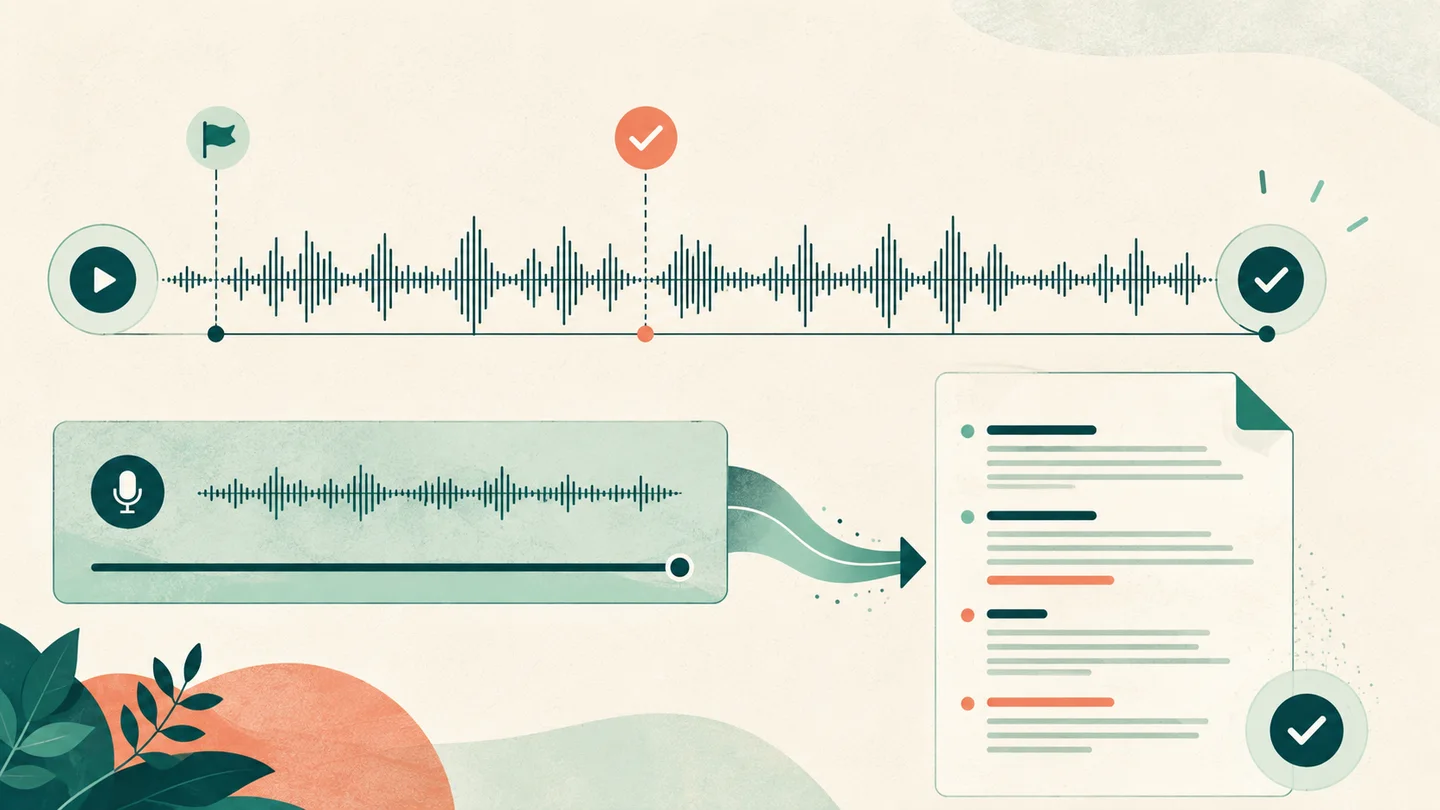
To transcribe a long WhatsApp audio, save the original message, confirm that the local copy has sound and reaches the same ending as the conversation, check how many minutes per file your Transcrever plan accepts, and then upload it. Afterward, verify the beginning, a middle passage, and the final sentence while listening to the recording.
First confirm that the file is complete
Play the copy outside the conversation before considering transcription. Note the duration shown in WhatsApp and compare it with the local player. Listen to:
- the first seconds, to detect a clipped start;
- a point in the middle, to confirm that playback advances normally;
- the last seconds, to confirm that the message ends in the same place;
- an important transition if there is silence or a sudden change of subject.
If the local file is shorter or ends early, save it again. Splitting or converting an incomplete copy cannot recover the missing passage.
Check the Transcrever plan limit
The relevant upload limit belongs to the active plan, not to an assumption about WhatsApp.
| Transcrever plan | Maximum per file |
|---|---|
| Visitor trial | 10 minutes |
| Free | 30 minutes |
| Pro | 180 minutes |
| Studio | 360 minutes |
These values describe the current Transcrever policy. Check Plans and pricing before working with a file close to the limit. Maximum file size and usage allowance can also prevent an upload even when its duration fits.
On the long WhatsApp audio page, a browser-readable file of five minutes or longer shows an informational notice with the plan maximum. The notice does not block a file that remains within the allowance.
For occasional work, you can also buy minutes without a subscription. Files paid with these minutes can be up to 3 hours and 1 GB, or 6 hours and 2 GB on Studio. Buying minutes keeps your current plan’s history and retention rules.
If you need to split the audio, work on a copy
Upload OGG, OPUS or M4A directly. If the file is within the limits, it does not need conversion or splitting. Keep the original if you need to trim a section.
Splitting can help when a file exceeds the plan maximum, but it creates cut points. Cut at natural pauses, keep the order in each filename, and verify that no word disappears between parts. Each part creates a separate task and result; the final combination remains your responsibility to review.
How to save WhatsApp audio for transcription explains how to save the message on a phone or computer.
Upload with the appropriate settings
Choose the main language spoken in the message. A one-person voice note normally does not need speaker separation; enable it when the file contains a conversation, a forwarded interview, or voices that you need to distinguish.
Use vocabulary for important names, abbreviations, and terms you expect to hear. It supplies context but does not guarantee the final form. For a long recording, a short, relevant list is easier to verify than dozens of unprioritized words.
Verify that the transcript reaches the end
Once the task is complete, do not assess only the opening paragraph. Use a focused sample:
- compare the first sentence with the audio;
- search for a name or subject mentioned in the middle;
- open the last passage and listen to the end;
- check numbers, dates, addresses, negatives, and instructions;
- confirm speaker changes where they affect meaning.
If editor playback reaches the end but the text misses an audible passage, review that interval. If the file itself ends early, return to the source; the transcript cannot include speech absent from the uploaded copy.
Correct and export while preserving order
Correct the matching passage while listening a few seconds before and after it. Use find and replace only when every located occurrence needs the same change.
For forwarding, Copy for chat removes speaker labels while keeping passage order and line breaks. Copy all retains the labels. TXT and DOCX work for storage and editing; SRT and VTT preserve reviewed timings.
When to split, change plans, or find another source
Split a copy when the complete file exceeds the plan maximum and has safe pauses for cuts.
Consider another plan when long files are recurring work and its published limit fits the required duration.
Find another source when the original message is clipped, the voice is inaudible, or the saved file does not match what plays in the conversation. More processing time does not fix an incomplete recording.
Frequently asked questions
Does the long-file notice block upload?
Not by itself. It reports duration and the plan allowance. A file within the allowance continues normally.
Does converting to MP3 shorten the recording?
A correct conversion should preserve duration, but a faulty tool or source can clip audio. Compare the beginning and end with the original before uploading.
Where do I start?
Open Transcribe long WhatsApp audio, choose the verified copy, and check the final passage before using the text.