Guides
How to turn a recorded lecture into text for studying
Transcribe a recorded lecture, correct names and terminology, return to source audio by timestamp, and download reviewed TXT or DOCX.
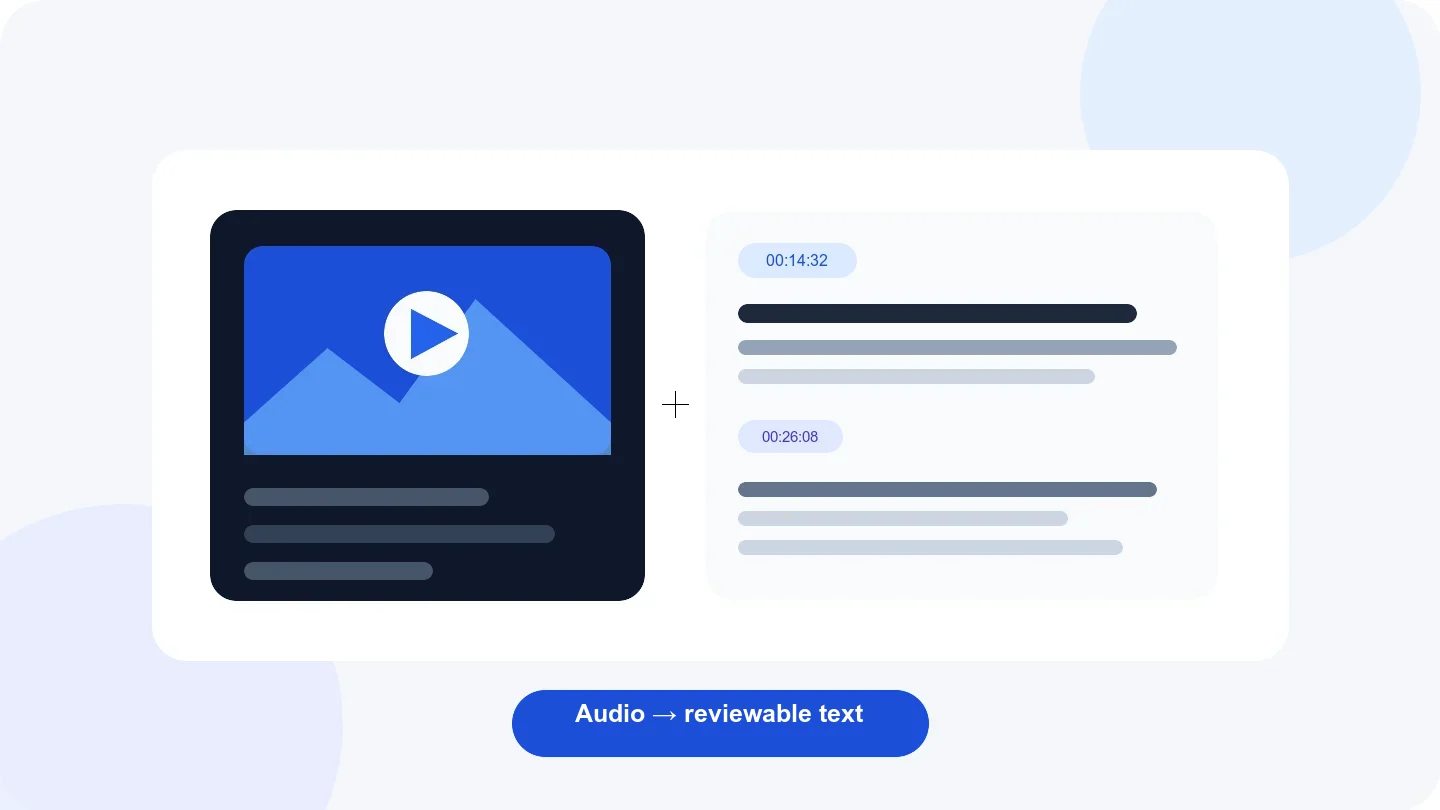
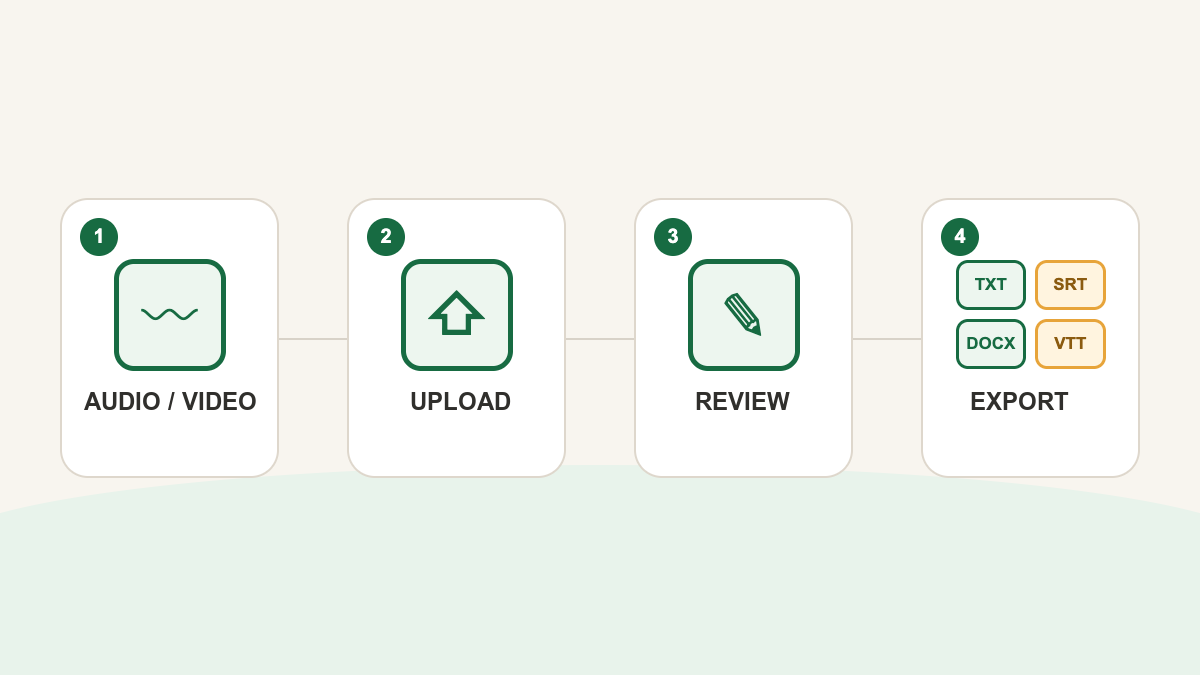
To turn a recorded lecture into study text, first choose the spoken language and add important names or terms to the vocabulary. Then select the audio or video file to start uploading. When transcription finishes, search for topics, correct the text against the recording, and download the reviewed TXT or DOCX.
Prepare the lecture recording
Use a recording you are authorized to process. Check that it plays to the end and use the copy closest to the original capture. Forwarding and repeated compression can make distant voices and word endings harder to hear.
Prepare a short list of lecturer names, authors, subjects, abbreviations, and technical terms. Vocabulary gives the recognizer useful context, but it does not guarantee every occurrence. Review still matters.
Step 1: choose the language before selecting the file
Open the lecture transcription page. First choose the spoken language and add important names or terms to the vocabulary. Enable speaker separation if both the lecturer and students can be heard. Then select the file to start uploading.
Transcrever accepts a lecture that has already been recorded. It does not join or record a live class.
Step 2: open and sample the completed transcript
Open the editor after the task is complete. The text is divided into timed passages, with speaker labels when separation was enabled. Those timestamps let you return to the corresponding part of the recording.
Read a passage near the beginning, middle, and end first. This quickly reveals a wrong language choice, missing audio, or a section that needs closer review.
Step 3: find topics, names, and technical terms
Search for a subject, author, or central phrase. For a repeated error, use find and replace only after confirming that every occurrence should have the same spelling. A common word can represent different concepts in one course.
Review meaning-changing details first: negatives, spoken formulas, dates, numbers, names, and quotations. Play a few seconds before and after a passage before editing it.
Step 4: use the transcript as study material
A transcript is a searchable source, not an automatic summary. Use it to find explanations, copy a quotation with context, and record the timestamp of a section worth hearing again.
A practical workflow is:
- mark the main topics you find in the text;
- verify important passages against the recording;
- copy only the necessary passage into your notes;
- keep the timestamp beside a statement that needs another listen;
- separate what the lecturer said from your own interpretation.
Step 5: choose TXT or DOCX
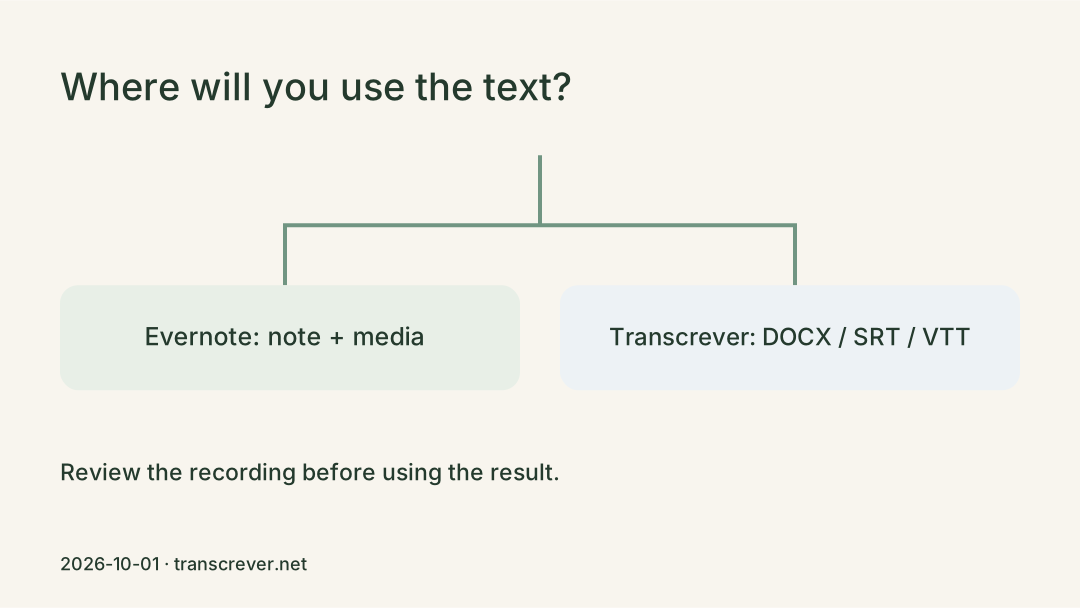
Download TXT for plain text that is easy to search, archive, or import elsewhere. Choose DOCX when you want to keep editing, highlighting, and arranging the material in a word processor.
SRT and VTT are also available, but they are primarily timed subtitle formats. Start another recording from audio to text when you have a separate lecture or audio source.
Common recorded-lecture problems
| Problem | What to do |
|---|---|
| A technical term is repeatedly wrong | Verify one occurrence in the audio, then replace carefully |
| A student question has the wrong speaker | Listen from the previous passage and change that passage label |
| A distant voice is incomplete | Use a clearer local recording if one exists |
| A formula or abbreviation loses meaning | Compare it with official course material |
| A passage cannot be confirmed | Preserve the uncertainty and return to the recording or another source |
Frequently asked questions
Is the transcript an automatic lecture summary?
No. It records recognized and reviewed speech. You still decide what is central and create your own notes or summary.
Does vocabulary eliminate errors in names and terms?
No. It supplies relevant spellings before processing, while audio quality, pronunciation, and context still affect the result. Verify important occurrences.
Can I return to the exact part of the recording?
The editor shows times for each passage. They support audio review and remain available in the timed SRT and VTT exports.
Where should I begin?
Use lecture transcription, upload an authorized recording, and review the result before using it as a study source.