Troubleshooting
Why automatic transcription is inaccurate and how to correct it
Diagnose the wrong language, noise, overlapping speech, names, and speaker errors, then correct the result against the recording in Transcrever.
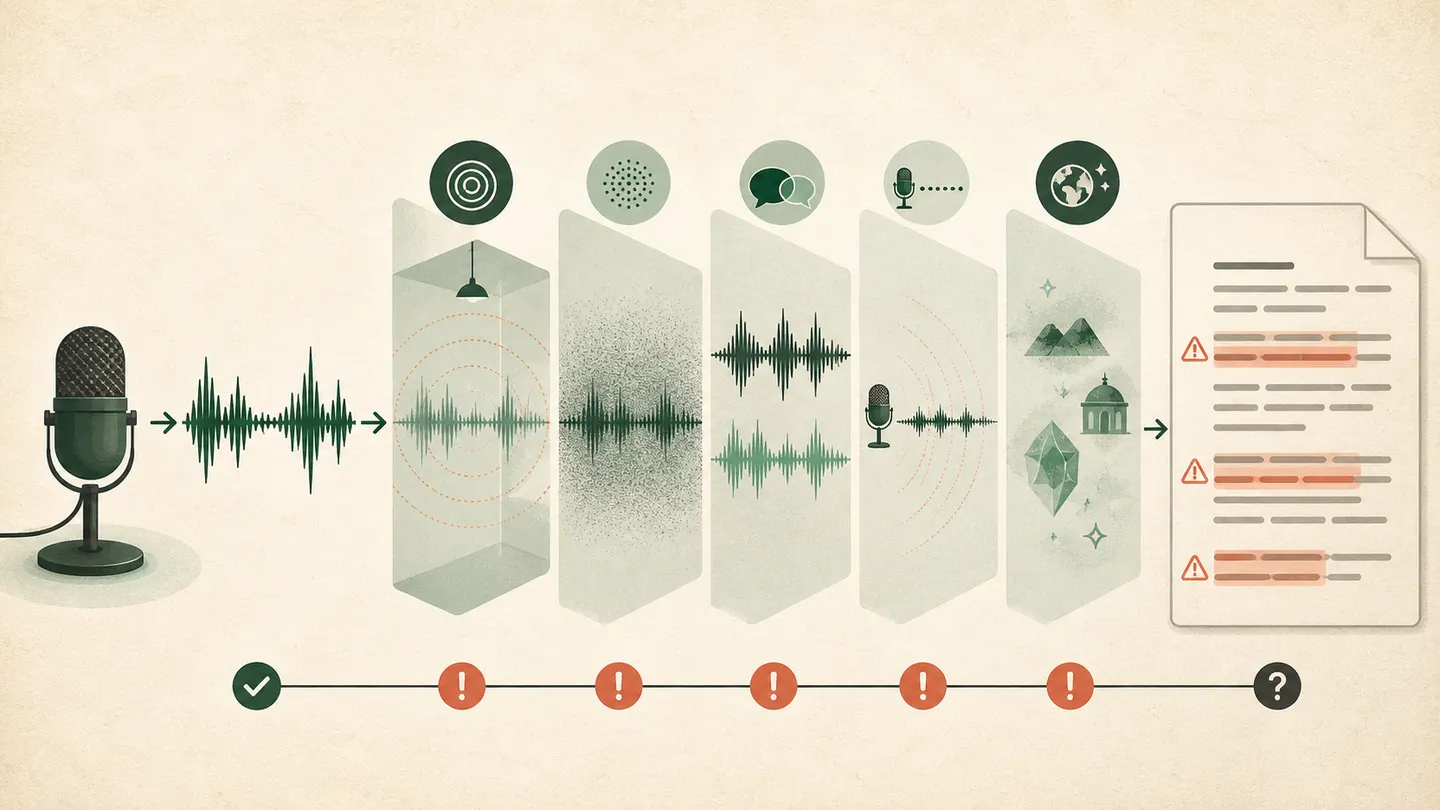
When an automatic transcript is inaccurate, start with the failed passage rather than the whole file. In the Transcrever editor, search for a word or open the relevant time, play a few seconds before and after it, and compare the text with the recording. The error usually points to the next action: correct a name, confirm a speaker, select the right language, or find a better source file.
Quick diagnosis: what went wrong?
| What you see | Likely cause | First action |
|---|---|---|
| Many meaningless sentences | Selected language differs from the recording | Check the language and submit again if needed |
| A passage is missing | Low voice, clipping, noise, or covered speech | Listen before and after the gap |
| A name became a common word | Little context for a name or acronym | Check an agenda or participant list |
| The speaker changed incorrectly | Similar voices, uneven volume, or overlap | Listen across the transition and correct that passage's speaker |
| Punctuation changed the meaning | Pause, hesitation, or interrupted sentence | Edit without inventing words |
| Most of the text is weak | Distant, distorted, or heavily compressed source | Find a file closer to the original |
1. Check the language before editing line by line
The wrong language changes which words the system considers likely. The result may contain real-looking words while the sentences remain disconnected.
Return to the upload screen and confirm the recording's main language. If speakers switch languages, choose the predominant one and flag the other passages for closer review.
2. Listen for noise, distance, and echo
A distant microphone records more room sound and less direct speech. Traffic, fans, keyboards, and other people compete with the voice. Echo can blur consonants and word endings.
Google Cloud's speech-data guidance recommends keeping the microphone close, avoiding clipped audio, and listening for distortion or unexpected noise. These are conditions you can inspect in any recording. See its speech data best practices.
3. Treat overlapping speech as a review point
When two people speak at once, words may disappear, two sentences may merge, or a segment may receive the wrong speaker label. Speaker separation organizes the first version, but it does not guarantee every attribution.
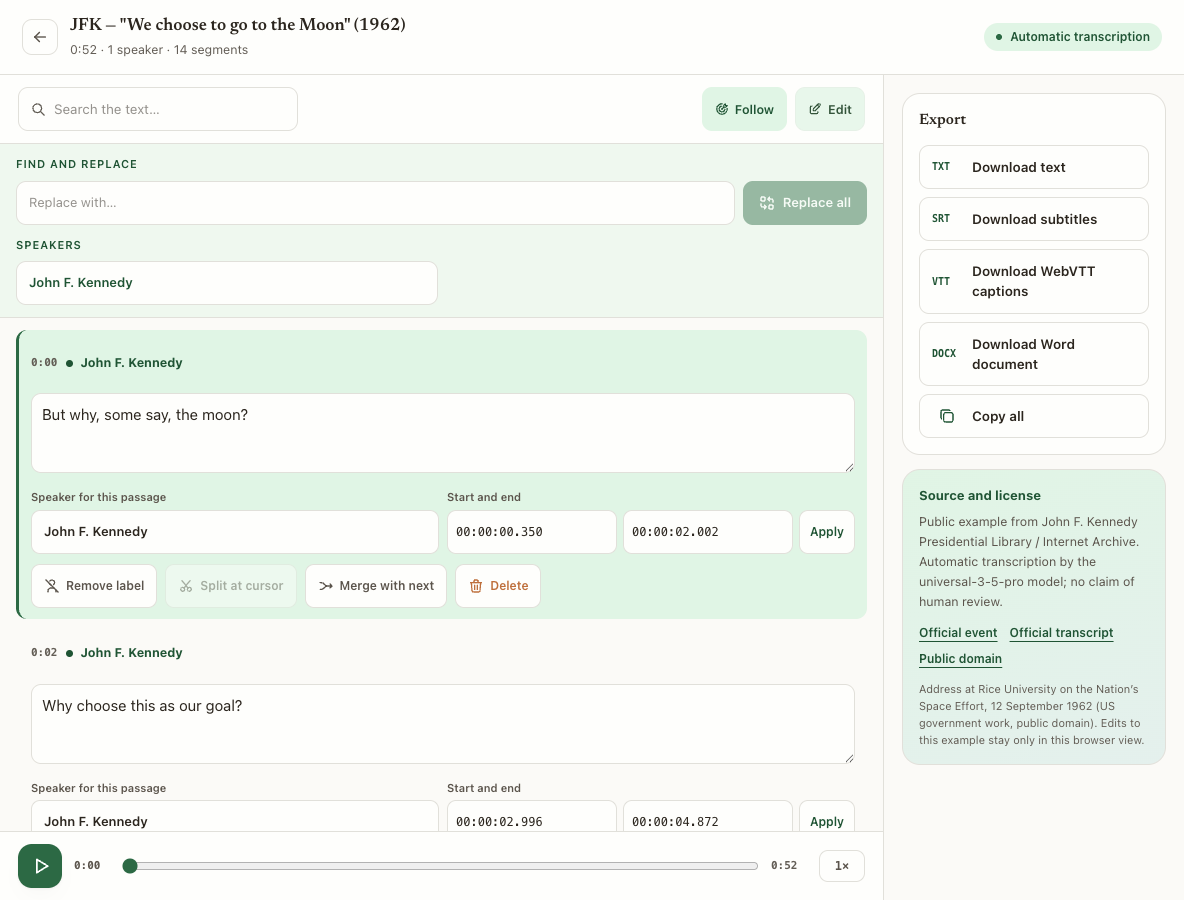
Listen from the preceding turn through the end of the answer. If only one passage has the wrong attribution, change the speaker for that passage; remove its label when no speaker name should appear. Global renaming is still useful when one label needs to change throughout the transcript.
If a passage combines the end of one turn with the start of another, place the cursor at the boundary and split it. Merge two fragmented consecutive passages only when they have the same speaker. Confirm the transition in the audio first rather than restructuring the transcript simply to make it look regular. If an important word remains unclear, leave the uncertainty visible rather than completing it from context alone.
4. Check names, acronyms, and numbers against another source
Before uploading, prepare a short reference list: participants, organizations, projects, dates, and specialist terms. Open Vocabulary in the upload area and enter the terms separated by commas or new lines. This vocabulary guides recognition; it does not guarantee that a term will be transcribed correctly, so the audio and context still need review.
After the result is ready, search for each term and play the complete passage before correcting it. If the same literal error repeats, Find and replace changes every case-insensitive match in passage text and reports the number replaced. It does not alter the audio, speaker labels, or timecodes. The reference is for verification; it should not force a word that cannot be heard.
5. Correct the result in Transcrever
Use this order:
- search for names, numbers, dates, and negatives;
- play the passage with surrounding context;
- correct only text you can confirm, and replace all only when every literal match needs the same change;
- correct one passage's speaker, remove an unwanted label, and split or merge passages when the recording supports the boundary;
- delete a passage only after confirming that it should not remain in the transcript;
- change start and end times only when playback shows a synchronization error; invalid or overlapping ranges are rejected;
- reread the passage and choose the file for the next task.
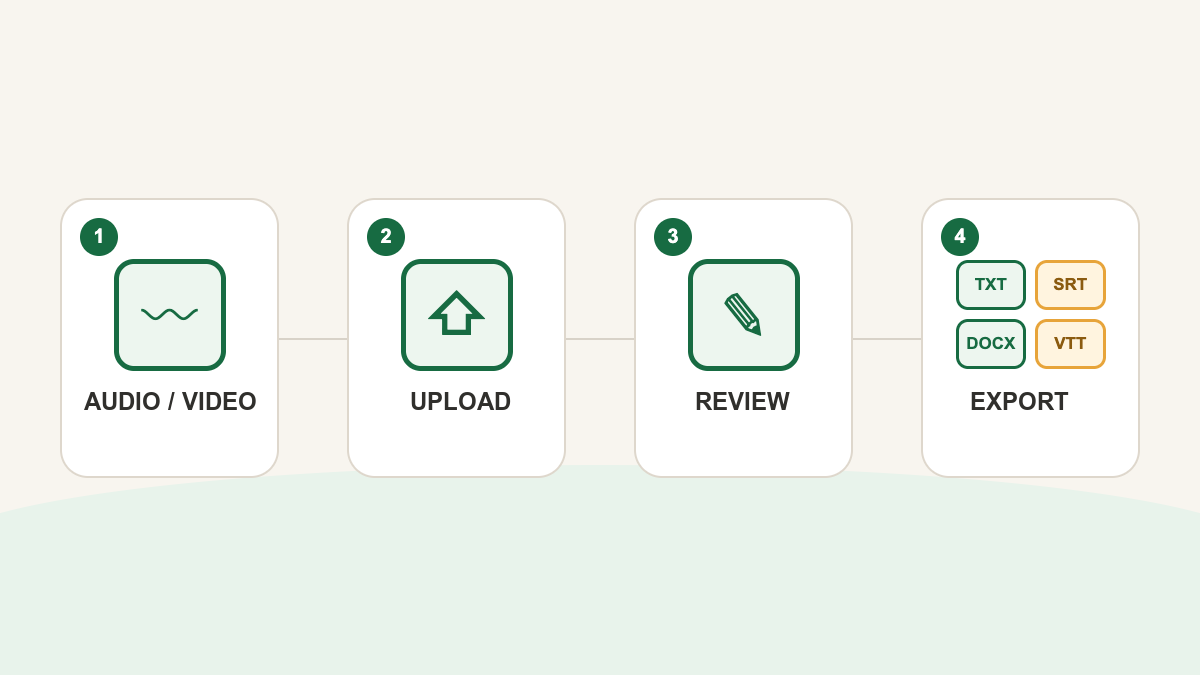
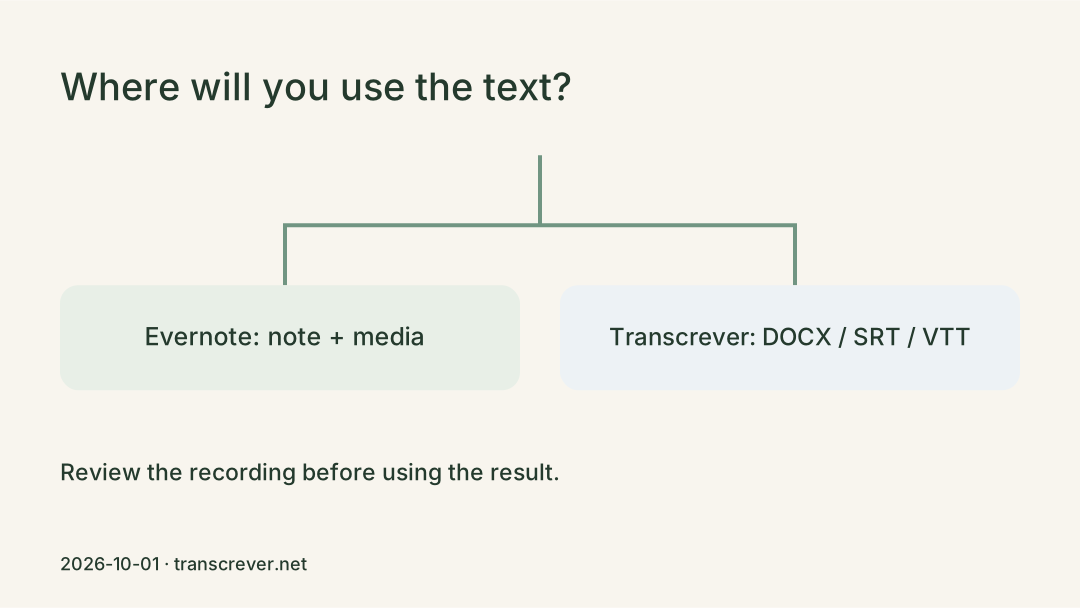
Download TXT for plain text, DOCX for continued work in a document editor, SRT for SubRip subtitles, or VTT for platforms that use WebVTT. SRT and VTT preserve the reviewed time ranges; they do not apply caption styling, positioning, or burn subtitles into the video. Test the caption file with the final media before publishing.
If you have not generated the text yet, start with audio to text. For several voices, see the meeting transcription workflow.
6. Decide whether to correct, resubmit, or find another recording
Correct in the editor when errors are limited to names, punctuation, one speaker, or a few audible passages. Resubmit when the selected language was wrong or you found a better source file. Find another recording when speech is consistently inaudible, distorted, or covered; converting MP3 to WAV cannot restore detail that was never captured.
AssemblyAI's evaluation documentation also recommends testing with your own audio because an aggregate score cannot tell you which errors affect your work. See its speech recognition evaluation overview.
Frequently asked questions
Does raising the volume improve transcription?
It may make a quiet file easier to hear, but it also raises noise and cannot restore clipped frequencies or distortion. Keep the original and compare a sample.
Does noise removal always help?
No. Aggressive filtering can remove speech together with noise. Test a copy and compare it with the original.
Why are names wrong even in clear audio?
Names provide less predictable context than common words. Add expected names to the upload vocabulary to guide recognition, then check spelling in a reliable source and listen to the full passage before editing. Vocabulary does not replace that review.
What is the difference between vocabulary and replace all?
Vocabulary accompanies the recording and indicates names or terms that may occur, without guaranteeing the result. Replace all runs after transcription and changes only literal matches in the generated text. Use the first to provide recognition context and the second only after verifying that every reported match needs the same correction.
How can I review a long recording faster?
Start with what will be used: names, numbers, dates, quotations, and speaker changes. Search and timestamps help focus listening before you download the corrected result.