Subtitles
How to create an SRT file and validate every subtitle
Learn the exact SRT structure, create subtitles manually or from a transcript, repair timecodes and encoding, and test synchronization before publishing.
Updated October 1, 2026
An SRT file is a plain-text document that connects each subtitle to a start and end time. A valid block contains a sequential number, a time range in HH:MM:SS,mmm --> HH:MM:SS,mmm format, subtitle text, and a blank line. Correct syntax is only the first test: the subtitles must also appear at the right time and remain readable with the final video.
1
00:00:02,000 --> 00:00:05,500
Today we will review the lesson material.

2
00:00:06,000 --> 00:00:09,200
We will start with the file structure.
Use two checks: first validate the file structure; then watch the media and verify timing, speaker changes, text, and line breaks.
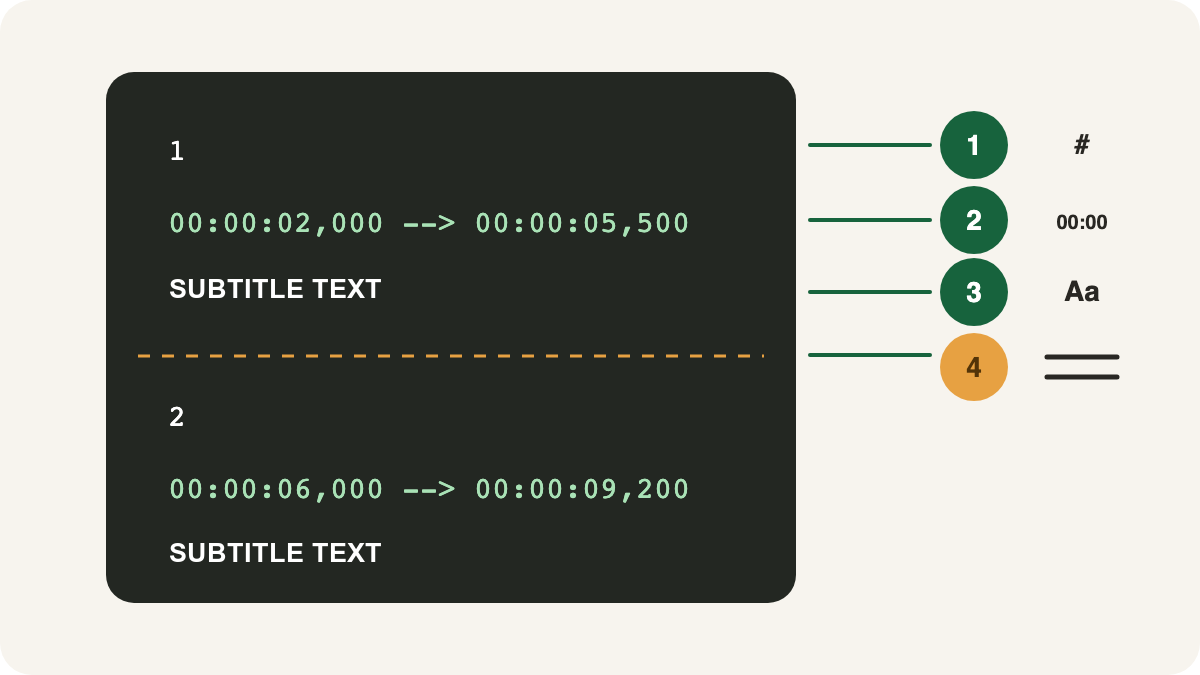
Understand the SRT structure
The Library of Congress format description identifies four parts in each SubRip block:
- a numeric counter;
- a start and end time;
- one or more lines of text;
- a blank line before the next block.
The comma before milliseconds is part of SRT notation, and the arrow uses two hyphens followed by a greater-than sign: -->. The end must come after the start.
SRT does not contain the media. It is a sidecar file read by a player, editor, or publishing platform. Keep the video or audio separately.
Decide whether you need a transcript, subtitles, or captions
A transcript records speech for reading, search, or analysis. Subtitles attach text to time ranges. Captions may also include meaningful sounds and speaker identification so that the content remains understandable without audio. The W3C introduction to captions explains why non-speech audio can matter.
Choose the output before editing:
- use TXT for plain searchable text or DOCX for continued work in a document editor;
- use SRT or VTT for timed subtitles, according to the destination;
- add relevant sound and speaker information when creating accessible captions;
- review the original-language meaning before translating subtitles.
Create an SRT file manually
1. Use a plain-text editor
Do not use a rich document format. Save plain text and prefer UTF-8 when the editor offers an encoding choice.
2. Write the first block
1
00:00:00,800 --> 00:00:03,600
Welcome to the presentation.
3. Separate blocks with a blank line
Continue numbering in order. Do not turn the counter into a bullet list; the number is part of the subtitle format.
4. Save with the .srt extension
Check the full filename. A hidden extension can produce subtitles.srt.txt, which many applications will not treat as SRT.
5. Load the file with the final video
If no text appears, check syntax, filename, encoding, and the import method. If text appears at the wrong time, the file was read but the timecodes need correction.
Generate SRT from an audio or video file
For a full recording, generating a timed first draft is usually faster than measuring every entry manually.
- Play the start and end of the source and confirm its duration and spoken language.
- Before starting, open Vocabulary and enter expected names, acronyms, and subject terms separated by commas or new lines. You can add up to 100 terms, each with at most 50 characters and 6 words. This guides recognition but does not guarantee the spelling.
- Open the subtitle generator, select the spoken language, then choose the media file to upload.
- Correct names, numbers, specialist terms, speaker labels, passage boundaries, and timing while listening.
- Watch samples near the beginning, middle, and end.
- Export SRT or VTT and open it again with the final media file.
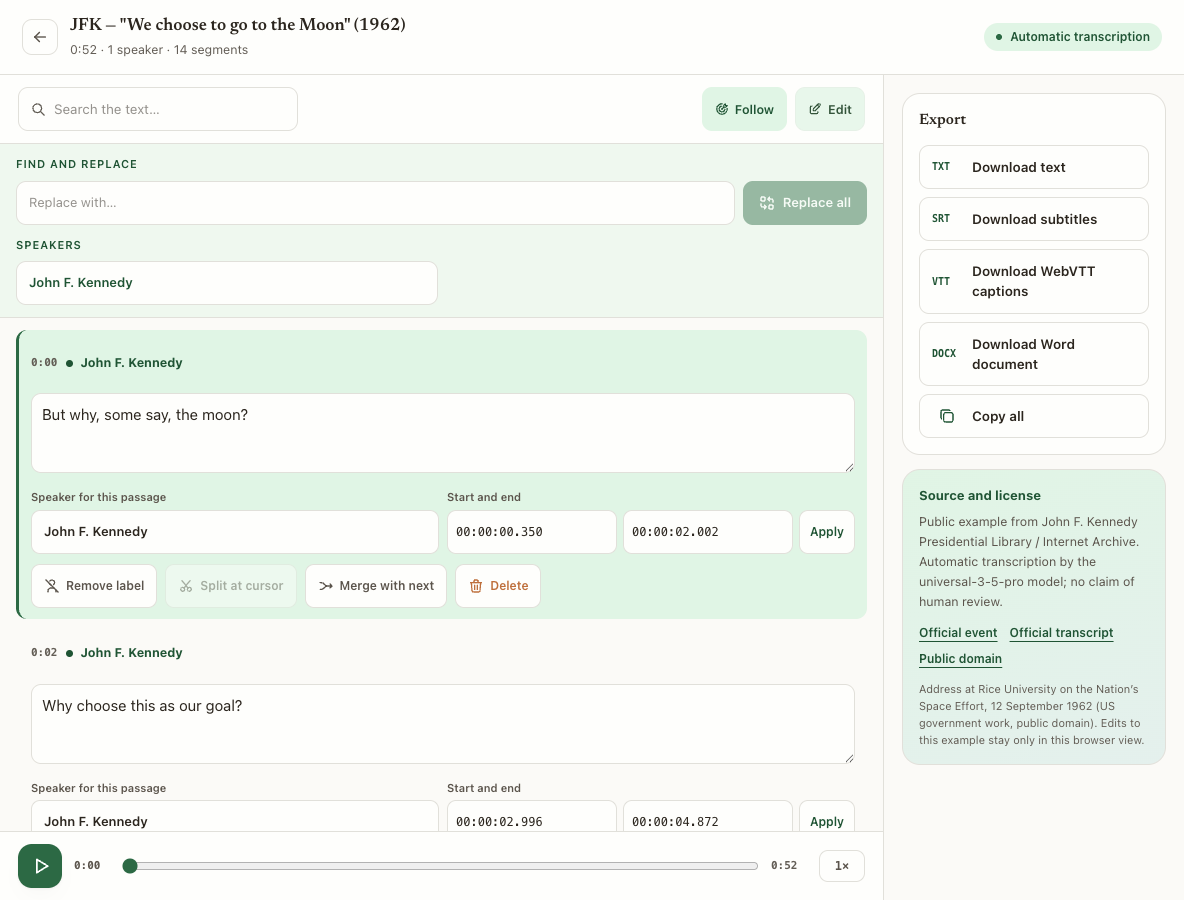
Correct passages in the Transcrever editor
Use edit mode while keeping the original recording available:
- edit one passage, or use Find and replace when the same literal error repeats. Matching is case-insensitive, changes passage text only, and reports how many matches were replaced;
- set the speaker for one passage, or select Remove label so its exports contain neither a speaker name nor the following colon;
- place the cursor between two parts and select Split at cursor when one passage combines separate turns or ideas;
- select Merge with next only for adjacent passages with the same speaker. If it is unavailable, verify the audio and correct the attribution first;
- delete a passage only after the confirmation dialog. It is removed from future exports, and the final remaining passage cannot be deleted;
- edit Start and end, then apply the range when playback proves the timing is wrong. Times must be non-negative, start before end, remain within the recording, and not overlap neighboring passages.
Download SRT for SubRip or VTT for WebVTT. TXT and DOCX are available when the next task needs a reading document instead of subtitles. Transcrever does not style, position, or burn captions into the video; handle those steps in the destination editor or platform.
Run a structural audit
Check the file without judging the writing yet:
- numbers follow the expected order;
- every block has a start and end;
- the arrow is exactly
-->; - milliseconds use a comma;
- every end is later than its start;
- blocks are separated by a blank line;
- the filename ends in
.srt; - accents and other characters survive reopening.
This block is broken:
3
00:01:18.200 -> 00:01:16.900
This block has several problems
It uses periods for milliseconds, an incomplete arrow, and an end time earlier than the start.
Review synchronization and readability
Entry and exit timing
Text should appear close to the speech or sound it represents and disappear before the next idea or speaker makes it misleading. Do not rely on one fixed duration for every block.
Breaks that preserve meaning
Avoid separating a first and last name or splitting words that only make sense together. A line break should help the viewer scan the text.
Speakers and meaningful sounds
Identify a speaker when understanding depends on who is talking. For captions, include sounds that carry meaning rather than filling every quiet moment with labels.
Samples across the whole file
Do not test only the first minute. Compare the beginning, middle, and end. A growing delay often indicates that the subtitle was made for a different cut or duration.
Troubleshoot common SRT problems
| Symptom | Likely cause | Correction |
|---|---|---|
| no subtitles appear | import, syntax, extension, or encoding problem | inspect the first block and import again |
| accented letters are corrupted | incompatible encoding | save a copy as UTF-8 and retest |
| every subtitle is early or late | global offset | shift all timecodes by the same amount |
| delay grows over time | different media duration or version | synchronize against the final cut |
| one block disappears | broken counter, timecode, or separator | rewrite that block using adjacent blocks as reference |
| text is hard to read | blocks are too long or badly divided | split by meaning and watch again |
Final checklist
- Every block has a number, time range, text, and blank line.
- Timecodes use
HH:MM:SS,mmm --> HH:MM:SS,mmm. - No end time comes before its start.
- Consecutive cues do not overlap.
- Passages that do not need identification were exported without a label.
- Important names, numbers, and terms were heard again.
- Speaker changes remain understandable.
- Samples from the beginning, middle, and end were tested.
- The SRT was opened with the final media version.
Frequently asked questions
Can I create SRT in Notepad or TextEdit?
Yes. Use plain-text mode, valid blocks, an .srt extension, and compatible encoding. For many blocks, an editor with media playback and timecode controls reduces manual work.
Does renaming TXT to SRT create subtitles?
Only if the TXT already contains valid numbered SRT blocks and time ranges. Renaming ordinary transcript text does not generate timing.
Why is the start synchronized but the end delayed?
The subtitles may refer to another cut or duration, or the media may have been edited after timing. Compare several points and synchronize against the exact file that will be published.
What is the difference between SRT and WebVTT?
Both connect text to time, but their syntax and supported features differ. Transcrever provides separate SRT and VTT downloads; choose the format required by the destination instead of changing the extension.
Next step
Use the subtitle generator to create the first timed version, then apply both checks from this article: file structure and real playback.