Transcription
How to transcribe audio to text and review the result
Prepare a recording, create a transcript, check names, numbers, speakers, and uncertain passages, then choose TXT, DOCX, SRT, or VTT.
Updated October 1, 2026
To turn a recording into text you can actually use, keep the original file, decide what the transcript is for, select the spoken language, and review high-risk passages while listening to the source. Automatic transcription removes most of the typing, but names, numbers, quotations, and overlapping speech still need human checking.
Use this article when you have an interview, recorded lecture, meeting, voice memo, or podcast recording and need searchable text. It covers preparation, upload, review, and the choice among TXT, DOCX, SRT, and VTT.
Quick answer: create the full draft first, then review by risk. Prioritize proper names, amounts, dates, decisions, and quotations because an error in any of them can change how the transcript is used.
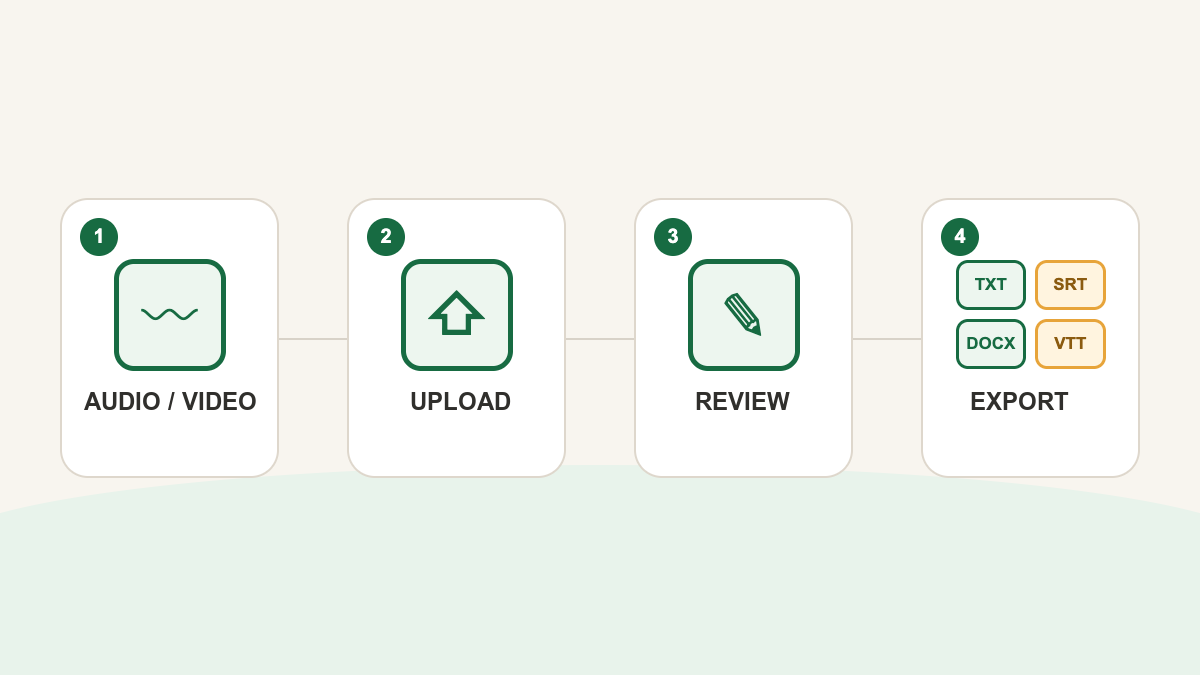
Choose the right transcription method
Three methods are common:
| Method | Best fit | Main effort | Typical result |
|---|---|---|---|
| Manual typing | short passages or tightly edited verbatim work | replaying, pausing, and typing | text corrected during listening |
| Voice typing | dictating new text or repeating material aloud | speaking again and editing | text without a dependable link to the source file |
| File transcription | an existing recording must be searched, reviewed, or captioned | uploading and checking | a complete draft with playback and export options |
Voice typing and file transcription solve different problems. Dictation captures what you say now. File transcription starts from an existing recording that must remain available for verification.
For an MP3, open MP3 to text. For other supported recordings, start with audio to text.
Check the recording before upload
Work from the closest available copy of the original. Repeated conversion cannot recover speech that was never captured and may introduce new loss.
Before uploading:
- play the beginning and end;
- confirm that the duration looks complete;
- check that the main voice is audible;
- identify the predominant spoken language;
- note expected names, acronyms, and technical terms;
- notice whether several people speak at the same time.
Traffic, music, echo, a distant microphone, and speaker overlap can make words ambiguous. When the source is uncertain, the transcript should be treated as uncertain too.
Transcribe the file step by step
1. Define how the text will be used
A private search copy does not need the same finish as a quotation for publication. Decide whether the result will support meeting decisions, interview analysis, lesson review, podcast production, subtitles, or archival search. That choice tells you which passages deserve the most attention.
2. Set the language before uploading the file
First choose the language spoken in the recording. This setting refers to the audio, not the browser language or the country where it was recorded. If speakers alternate languages, review those transitions carefully.
Open Vocabulary to add expected names, companies, acronyms, and subject terms separated by commas or new lines. The field accepts up to 100 terms, each with no more than 50 characters and 6 words. Vocabulary guides recognition but does not guarantee that a term will be transcribed correctly; keep the important items on your review list.
Enable speaker separation if there are several voices. After setting the language and vocabulary, select the file to start uploading.
3. Confirm that the result is complete
When processing finishes, check the beginning, middle, and end before making detailed edits. If the recording has multiple voices, speaker separation can help navigation, but verify every important attribution before relying on it.
4. Review in layers
Start with passages where a mistake changes meaning:
- names of people, organizations, and products;
- dates, times, amounts, percentages, and addresses;
- decisions, responsibilities, and deadlines;
- quotations that will be published or cited;
- speaker changes and overlapping speech;
- specialist vocabulary and acronyms.
Then read for missing phrases, punctuation, paragraph breaks, and consistency. Listening only from the first second to the last can waste time on easy passages while leaving critical details unchecked.
After listening, use the control that matches the error:
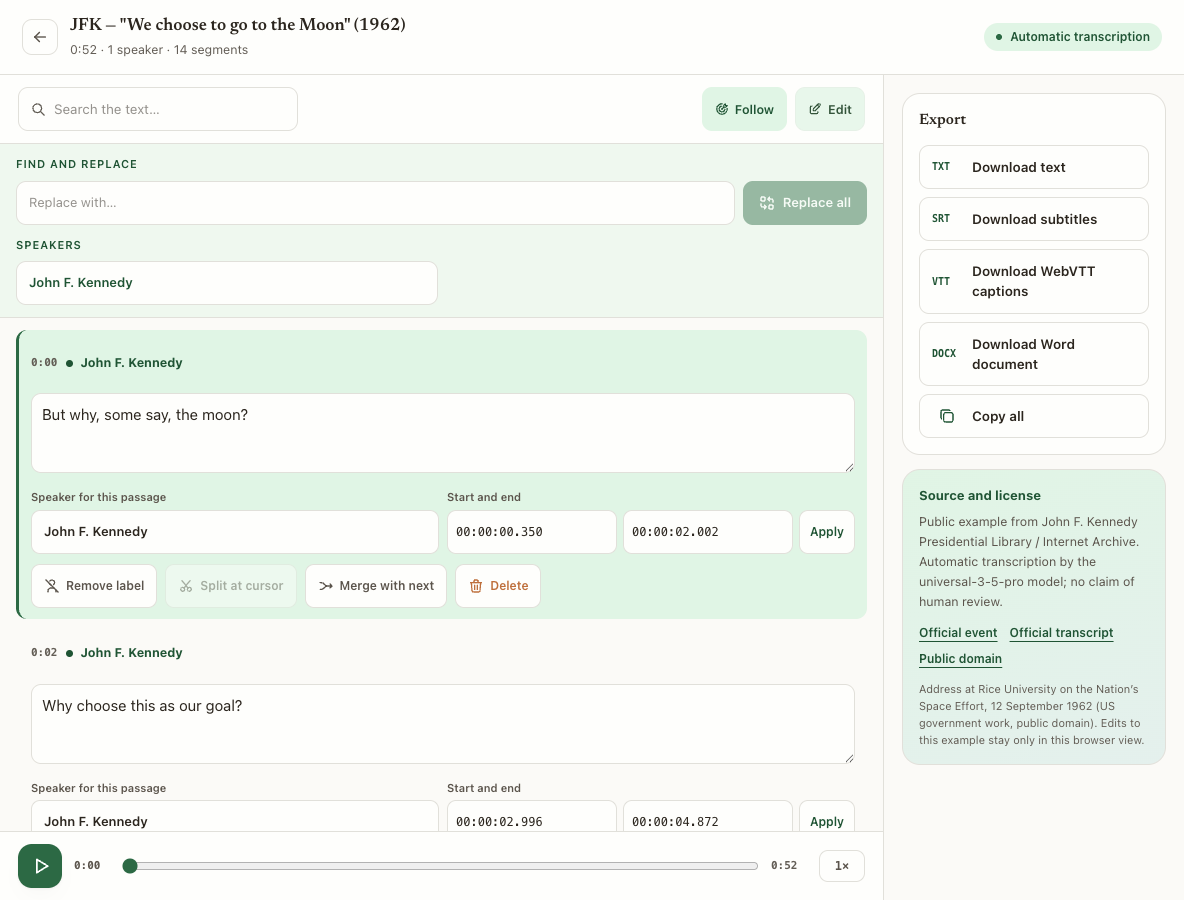
- edit one passage, or use Find and replace for a repeated literal error. Matching is case-insensitive, changes passage text only, and reports how many matches were replaced;
- change the speaker for one passage, or select Remove label when no name should appear. A passage without a speaker is exported without a label or colon;
- place the cursor at a true boundary and select Split at cursor when one passage combines separate turns or ideas;
- select Merge with next only for adjacent passages with the same speaker. If they belong to different people, verify the audio and correct the attribution instead of forcing a merge;
- delete a passage only after confirming the removal. It disappears from future exports, and the final remaining passage cannot be deleted;
- change the start and end only when playback shows a timing error. The editor rejects negative times, a start at or after the end, overlap with neighboring passages, and a time beyond the recording duration.
5. Export for the next task
Choose TXT for plain searchable text, DOCX for continued work in a document editor, SRT for SubRip subtitles, or VTT when the destination asks for WebVTT. SRT and VTT preserve the reviewed time ranges. Keep the original recording until the exported result has been checked in its destination.
Transcrever does not set caption fonts, colors, or positions and does not burn captions into the video. Apply styling and burn-in in the editor or publishing platform where the media will be delivered.
Choose TXT, DOCX, SRT, or VTT
| You need | Choose | Why |
|---|---|---|
| plain text for search, copying, or an archive | TXT | it opens without subtitle syntax or document styling |
| a document for continued editing and formatting | DOCX | it opens in document editors with passages and speaker names |
| SubRip subtitles with time ranges | SRT | it keeps each cue attached to reviewed start and end times |
| captions for a destination that requests WebVTT | VTT | it writes the reviewed ranges in WebVTT syntax |
A practical review method
Use four passes when the transcript matters:
- Completeness: confirm that no section is missing.
- Critical facts: verify names, numbers, dates, and quotations against the audio.
- Speakers and meaning: check who said what and repair sentences damaged by overlap.
- Delivery: improve punctuation and formatting, then test the exported file.
Mark a passage as uncertain rather than guessing when the audio does not support a reliable correction. A visible uncertainty is safer than confident but invented wording.
Common problems
| Problem | What to check | Next action |
|---|---|---|
| upload does not start | extension, file size, and whether the media plays locally | use the original supported file or create a real conversion |
| names are wrong | the exact passage and expected spelling | listen again and correct consistently |
| speakers are mixed | voice change around the boundary | replay the transition and correct that passage's speaker |
| punctuation is awkward | pauses, sentence meaning, and paragraph breaks | edit for reading without changing what was said |
| a passage is missing | whether speech is audible in the source | mark uncertainty or return to a better recording |
Frequently asked questions
Can automatic transcription be used without review?
It may be enough for low-risk personal search, but review is necessary before publishing quotations, recording decisions, assigning speech, or relying on numbers. The level of checking should follow the consequence of an error.
Should I improve the audio before transcribing it?
Use the original when it is complete and understandable. Heavy processing can distort speech. If you create a cleaned copy, keep the original and compare a few passages before assuming the new version is better.
What should I do with inaudible speech?
Replay the surrounding context and use another source if one exists. If the words still cannot be verified, mark the uncertainty instead of inventing text.
When should I use vocabulary or replace all?
Add vocabulary before upload to indicate names and terms that may occur. It guides recognition but does not guarantee the result. Use Find and replace after transcription only when you have verified that every literal match in the text needs the same correction; it does not change the audio, speakers, or timecodes.
Which export format should I choose?
Choose TXT for plain text, DOCX for a working document, SRT for SubRip subtitles, or VTT for a WebVTT destination. Test SRT and VTT with the final media before publishing.
Next step
Open audio to text, upload the recording, and keep this checklist beside the result. Export only after the passages that matter to your task have been checked against the source.