WhatsApp audio
WhatsApp Web not transcribing audio? What to check
Cannot find the transcribe option? See where to enable voice-message transcripts and how to save the audio on your computer when the feature is unavailable.
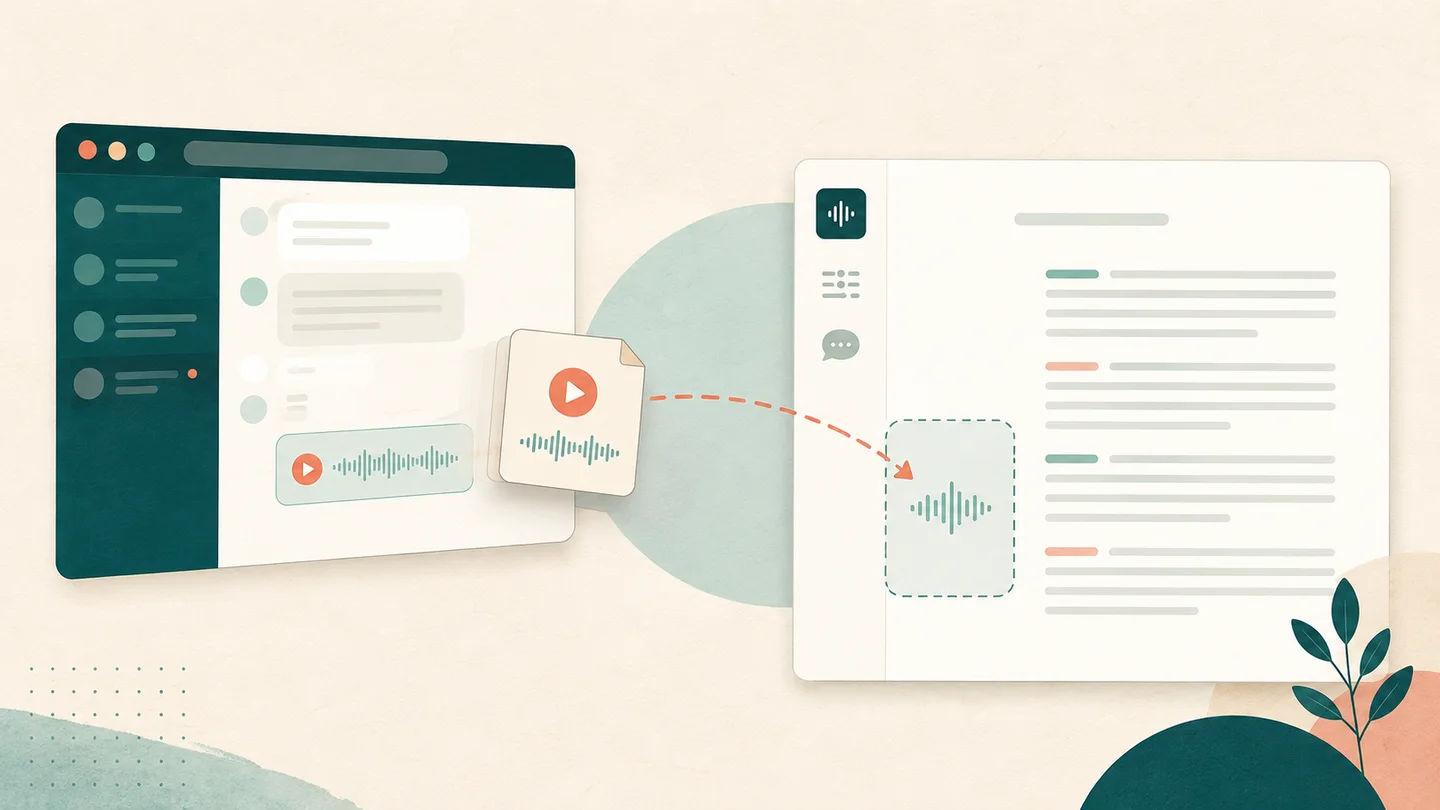
If the Transcribe option does not appear in WhatsApp Web, first check whether voice-message transcripts are enabled on a compatible device. In WhatsApp, open Settings > Chats > Voice message transcripts, choose the language, and keep the app updated. The feature may still be unavailable on some devices.
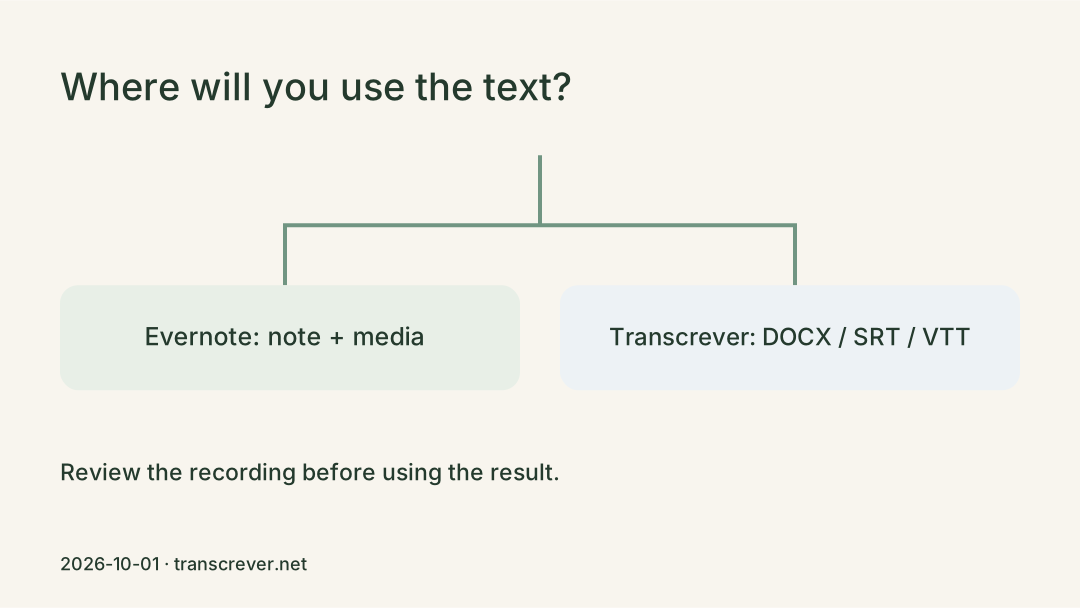
When the option remains unavailable on your computer, save the message as a file, play the copy to the end, and upload it to Transcrever. You can listen to the recording while correcting the text, then copy or download the result.
This workflow does not connect Transcrever to your account or read conversations. You choose which file to save and upload.
Why the transcribe option may be missing
WhatsApp says voice-message transcripts are available only on certain devices and may not be available to everyone yet. Native transcripts are generated on the device. Check the official voice-message transcript guidance for current availability and setup details.
If the feature is available on your device, enable it in Chat settings, select the transcript language, and return to the voice message. If the option is missing or does not produce the text you need, continue on your computer with the saved copy.
Quick answer for a computer
The workflow has four steps:
- open the voice message in WhatsApp Web or the desktop app;
- use the available action to download or save a copy;
- confirm that the local file plays from beginning to end;
- open Transcribe WhatsApp audio from the Web, select the file, and review the completed text.
Command names may change by browser, operating system, and app version. Look for the equivalent of download or save, then verify the result in your file manager.
Check that the audio was actually saved
Finding an item in Downloads is not enough. Before upload, check that:
- the file opens in an audio player;
- there is sound at the beginning and the end;
- the duration matches the message in the conversation;
- the file size is not zero;
- the name ends in a media extension such as
.ogg,.opusor.m4a; - the original message remains available until review is complete.
If the item does not play, is much shorter, or works only as a shortcut, return to the conversation and save another copy. Rerecording a loudspeaker should be a last resort because it adds room noise, echo, and another change in volume.
Handle OGG, OPUS, or M4A files
Transcrever accepts the original .ogg, .opus or .m4a recording directly; no renaming or conversion is needed.
If you have not saved the message yet, follow How to save WhatsApp audio for transcription. It covers saving on a phone or computer and checking the copy before uploading.
Upload from the browser
Open WhatsApp Web audio transcription. In the upload area:
- select the language spoken in the message;
- add important names or terms to vocabulary when needed;
- choose the saved file to start uploading;
- open the transcript once the task is complete.
A message from one person normally does not need speaker separation. Enable it when the recording contains a conversation or background voices you need to distinguish, and still verify the resulting labels.
Review the text before using it
Listen first to details that can change a decision: names, telephone numbers, addresses, amounts, dates, times, negatives, and instructions. Search for the term in the editor, play a few seconds around the passage, and correct only what you can confirm.
If a word is not audible, do not complete the sentence merely because it sounds plausible. Preserve the uncertainty or consult another source. For a long message, also check the first and last sentence; they quickly reveal whether the saved copy or the result is incomplete.
Move the result into another chat
Use Copy for chat when you need plain text without speaker labels. Passage order and line breaks remain, including edits made before copying.
Use Copy all when speaker names are useful. Download TXT or DOCX to keep or edit the result outside the browser. Choose SRT or VTT when timings need to accompany audio or video.
When to return to WhatsApp
Save the message again if the file cannot open, ends early, or is silent where the original contains speech. Look for another recording when the message itself is clipped or inaudible; converting a file cannot recover a voice that was never captured.
For messages saved from different devices, start with the general WhatsApp audio guide. In every case, keep the source until you have checked the final text.
Frequently asked questions
Does Transcrever access my WhatsApp Web conversations?
No. You save one message as a file and select that file for upload. There is no direct conversation import.
Where do I enable WhatsApp voice-message transcripts?
Open Settings > Chats > Voice message transcripts on a compatible device and choose the language. If the option is missing, update WhatsApp and check again; availability still varies by device.
Can I paste a conversation link?
Not for this workflow. The message must be a local file that you can play and select.
Must I convert OGG to MP3?
Not when the .ogg file opens and can be uploaded. Convert only when the saved format is unsupported, and keep the original for comparison.
Is the text ready to forward immediately?
Review it first, especially names, numbers, and instructions. The chat-ready copy action then removes speaker labels while preserving the corrected text.